Is browser file sharing safe? What happens to your files
By Thavasi · Updated 3 November 2026
Sending a file "through a website" sounds like the website gets a copy. With browser-to-browser tools like WifloShare, it doesn't: the file goes from one device straight to the other. Here's what actually happens, what's protected, and the few things you should still watch out for.
The short answer
Yes, for everyday files it's safe, and in some ways safer than uploading to a cloud drive or a chat app: the connection is always encrypted, and no server keeps a copy. The main thing to protect is the code, because anyone who has it can download while you're sharing.
How a transfer works
- The two browsers find each other A small connection service (called signalling) passes a few short messages between the two devices, using the 6‑character code to match them. It sees the code and technical connection details, but never the file.
- They open a direct, encrypted connection Browsers use a technology called WebRTC, the same one used for video calls. WebRTC always encrypts its connections (with DTLS); a website can't turn that off.
- The file streams across It's sent in small pieces straight to the other device and saved there. Nothing is uploaded to, or stored on, a WifloShare server.
Who can see what
| Who | What they can see | Your file? |
|---|---|---|
| The connection service | The code and connection details, such as network addresses | No |
| A relay, if one is used | Encrypted data passing through | No, it can't decrypt it |
| Your Wi‑Fi or internet provider | That an encrypted connection exists | No |
| The person with the code | The file names and sizes, then the files | Yes |
| WifloShare | Anonymous daily totals, such as "3 files, 120 MB sent" | No, and no file names |
A relay is only used when the two devices can't connect directly, for example when one is on mobile data. Even then, the data stays encrypted between the two browsers. Details are in our privacy policy.
How it compares with other ways to send files
- Cloud links (Google Drive, OneDrive, Dropbox) keep a copy on the company's servers until you delete it, and anyone who gets the link can usually open it.
- Chat apps pass files through their servers. WhatsApp encrypts them end to end, but the files then sit in chat backups and on every device in the chat.
- Email attachments stay in the sender's and receiver's mailboxes, often for years.
- Pen drives are easy to lose, and shop or office computers can pass on viruses.
Five habits that keep it safe
- Treat the code like a key. Send it only to the person who needs it. Don't post it in a big group unless everyone there should get the file.
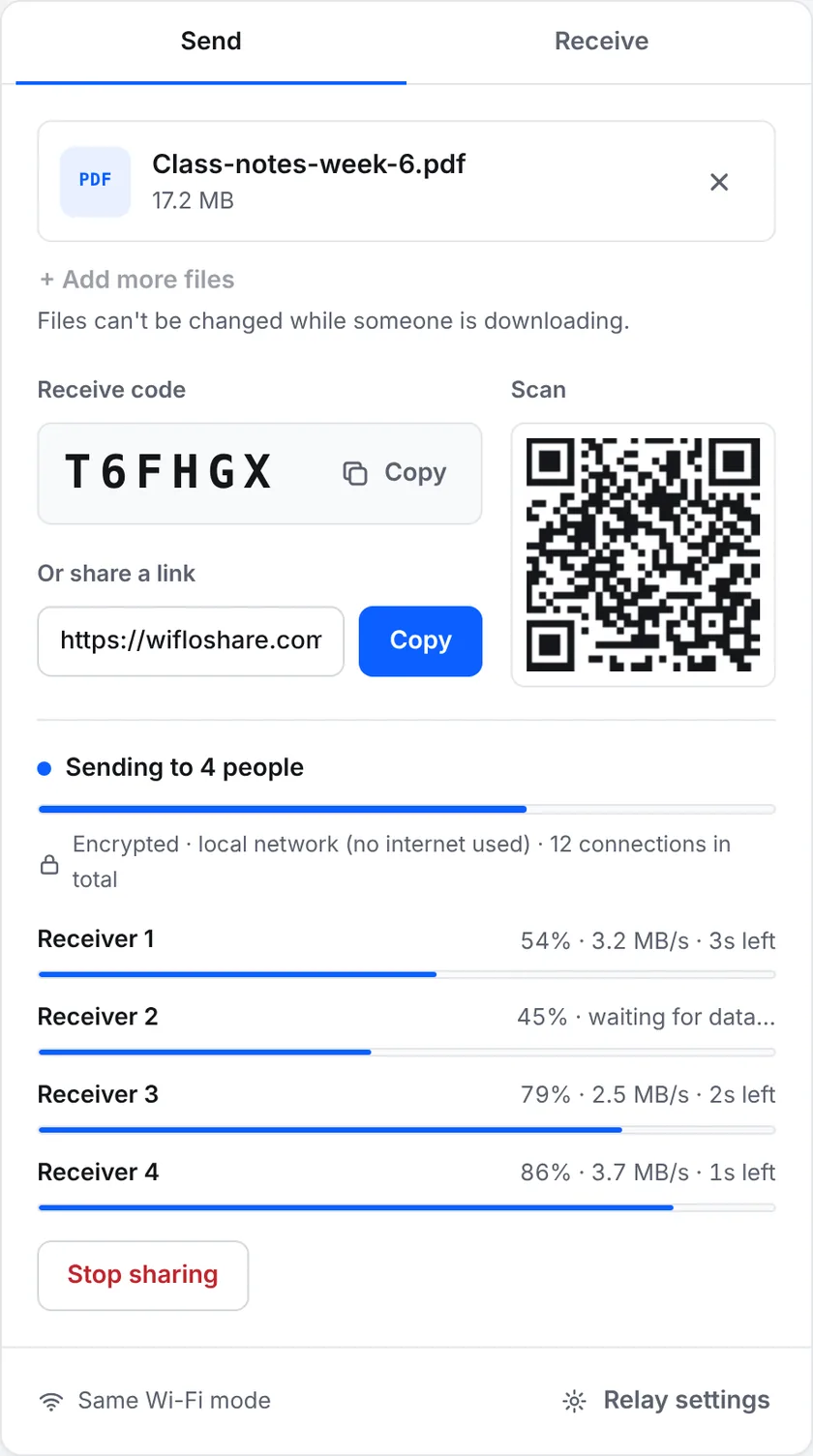
- Watch the receiver count. The sender's screen shows how many people are downloading. If it says more than you expected, press Stop sharing.
- Stop sharing when you're done. Once you stop, or close the page, the code no longer works.
- Check the address. Make sure the page is really wifloshare.com before choosing files, especially if you followed a link from someone else.
- Be careful with files from strangers. The connection is safe, but a file can still contain something harmful. Don't open apps (APK) or programs (EXE) you weren't expecting.
Good to know
- Network addresses: as with any direct connection, including video calls, the two devices learn each other's network address. On the same Wi‑Fi, that's only a local address such as 192.168.1.5.
- Public Wi‑Fi: the transfer is still encrypted, but people nearby can hear a code you read out loud. Show it on screen instead.
- Work files: if your company says which tools to use for confidential data, follow that. See sending large files to a colleague.
Try it now: open wifloshare.com on both devices. It's free, with no sign-up and no size limit.
Open WifloShare