The best AirDrop alternatives for Windows and Android
By Thavasi · Updated 3 November 2026
AirDrop is the easiest way to send a photo between two Apple devices: tap Share, pick the nearby device, done. The problem starts when one of the devices is a Windows laptop or an Android phone. Here are the alternatives that give you the same quick, full-quality sharing, and which one fits which pair of devices.
Quick comparison
| Option | Works between | Install anything? | Needs internet? |
|---|---|---|---|
| WifloShare (browser) | Any phone, tablet or computer | No | Briefly, to connect |
| Quick Share | Android and Windows; some new Android phones with Apple devices | Built into Android; app on Windows | No |
| Nearby sharing | Windows and Windows | Built into Windows 10 and 11 | No |
| LocalSend | Android, iPhone, Windows, Mac, Linux | Yes, on every device | No |
Option 1: Any device to any device, from the browser
AirDrop's best trick is that there's nothing to set up. A browser tool gets close to that for every brand, because every phone and computer already has a browser.
- Put both devices on the same Wi‑Fi Or turn on one phone's hotspot and connect the other device to it.
- Open wifloshare.com on the sending device Tap Tap to choose files and pick photos, videos or documents.
- Open it on the receiving device Scan the QR code with the camera, or type the 6‑character code under Receive, then tap Download.
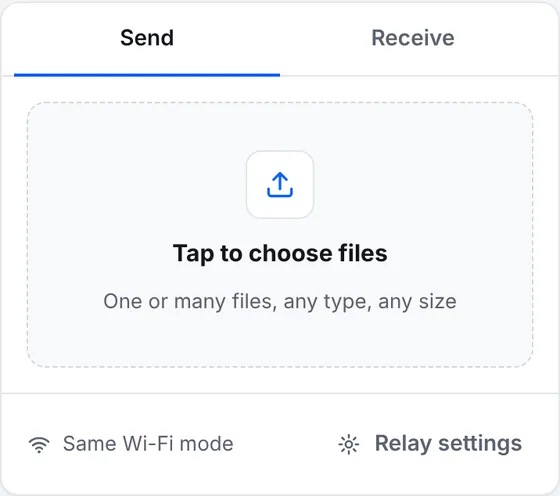
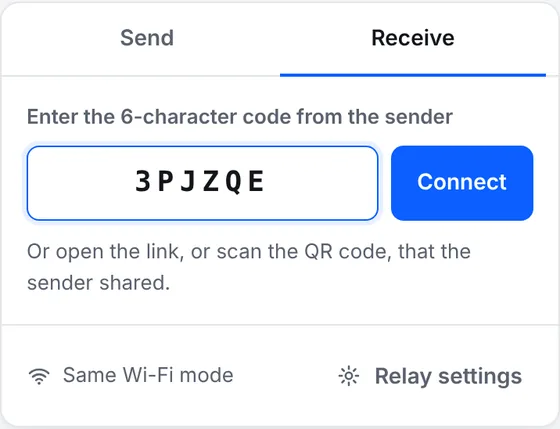
Try it now: open wifloshare.com on both devices. It's free, with no sign-up and no size limit.
Open WifloShareHow it compares with AirDrop
- Same: files go straight between the two devices over Wi‑Fi, at full quality, with no size limit and nothing stored on a server.
- Better: it works between any brands, Windows to iPhone, Android to Mac, Linux to anything, and several people can download the same files at once.
- Different: instead of seeing nearby devices automatically, you use a code or QR code, and both devices need internet for a moment to find each other.
Option 2: Quick Share (Android and Windows)
Quick Share is Google's AirDrop: it's built into most Android phones, and there's a Quick Share app for Windows PCs. Open the share menu on any file, tap Quick Share and pick the nearby device. It works without internet and is fast.
Since late 2025, Google has also been adding AirDrop support to Quick Share, so some Android phones can send to and receive from iPhones and Macs directly. By mid‑2026 that included the Pixel 8a and newer Pixels, recent Samsung Galaxy S and foldable phones, and a few flagship models from other brands. Both devices have to be visible to Everyone while sharing.
Option 3: Nearby sharing (Windows to Windows)
Windows 10 and 11 have their own version: turn on Settings → System → Nearby sharing on both PCs, right‑click a file, choose Share, and pick the other PC. It only works between Windows computers and can be slow for big files. More options are in how to transfer files between two laptops.
Option 4: LocalSend (an app for every device)
LocalSend is a free, open-source app for Android, iPhone, Windows, Mac and Linux. Once it's installed on both devices, they find each other on the same Wi‑Fi, a lot like AirDrop. It's a good choice if you share between the same devices every day and don't mind installing it on each one.
Which should you use?
- A mix of brands, or someone else's device: the browser, because there's nothing to install.
- Android phone and Windows PC, often: Quick Share.
- Your own devices, every day, any brand: LocalSend.
- All Apple: just use AirDrop.
Guides for specific pairs: iPhone to Windows, Windows to iPhone, Android to Mac and iPhone to Android.