How to send files from a Windows PC to an iPhone without iTunes
By Thavasi · Updated 3 November 2026
Getting files from an iPhone to a PC is common. Going the other way, PC to iPhone, is where people get stuck: AirDrop doesn't work with Windows, and syncing through iTunes is slow and can replace what's already on the phone. Here's a simpler way, and where to find the files on the iPhone afterwards.
Option 1: From the browser, with no app
- Put both on the same Wi‑Fi Or turn on the iPhone's Personal Hotspot and connect the PC to it.
- On the PC, open wifloshare.com Drag your photos, videos or documents onto the page. A code, a link and a QR code appear.
- On the iPhone, point the Camera at the QR code Tap the link that appears to open it in Safari. Or open wifloshare.com in Safari and type the code under Receive.
- Tap Download If Safari asks whether to download the file, tap Download. Keep Safari open with the screen on until it says the download is complete.
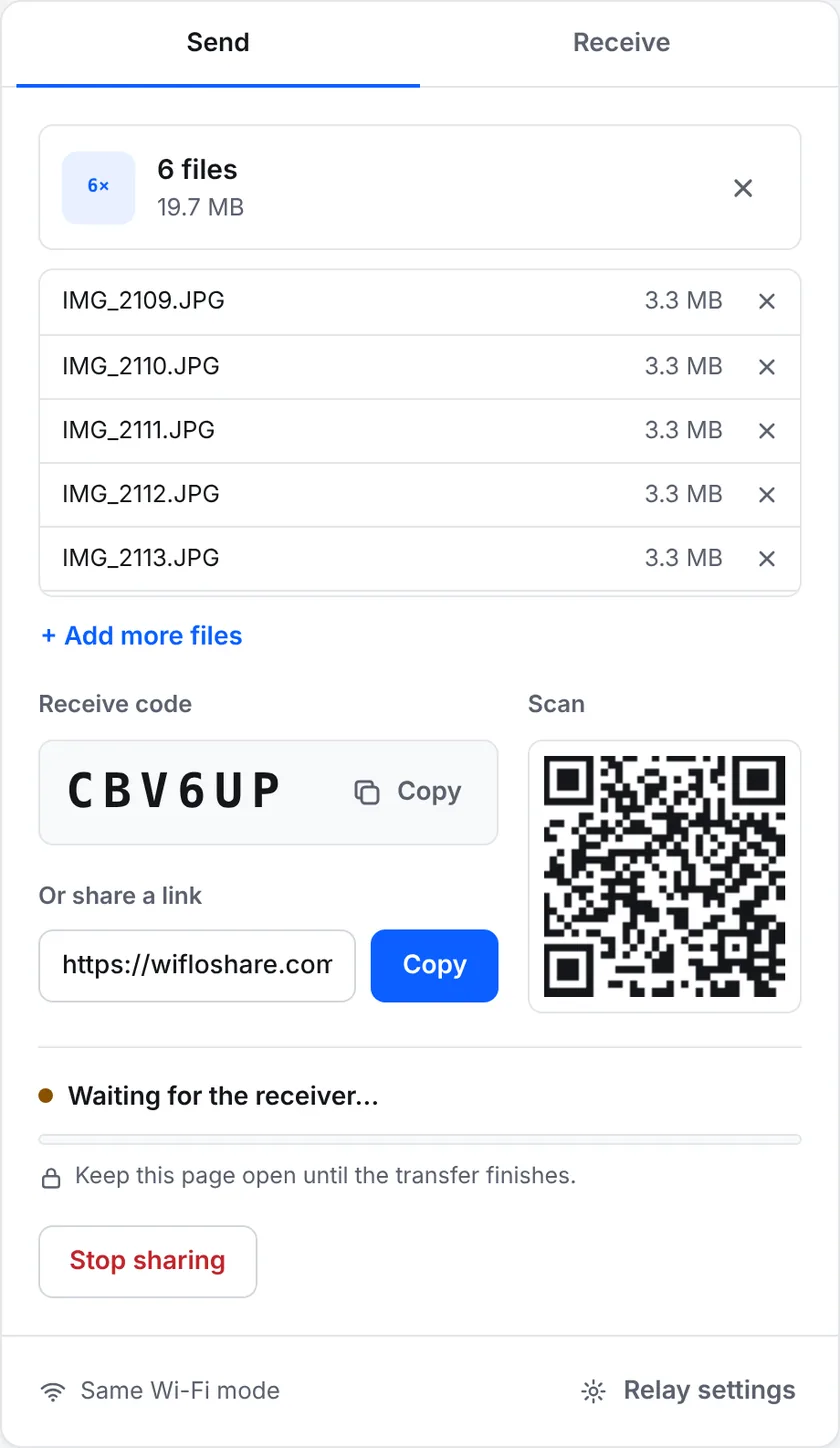
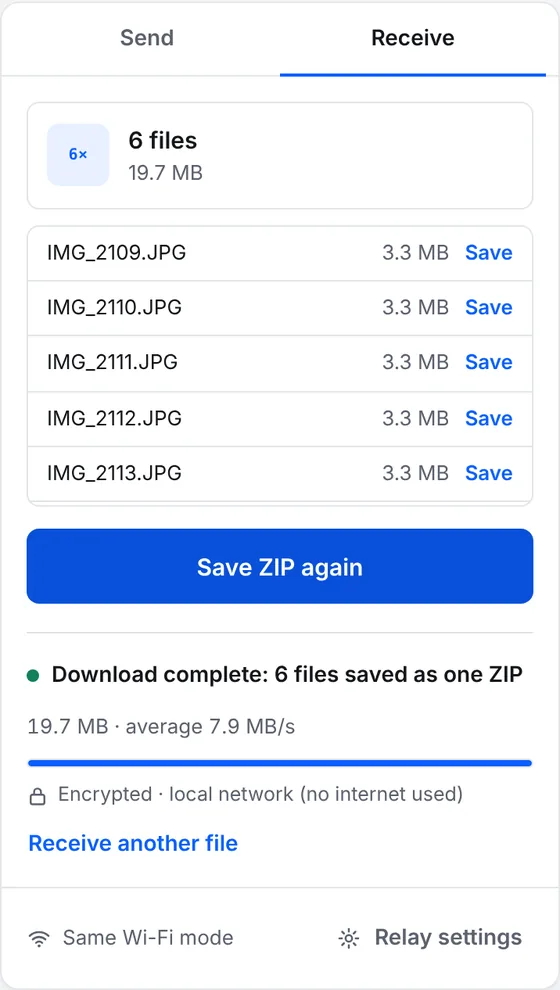
Try it now: open wifloshare.com on both devices. It's free, with no sign-up and no size limit.
Open WifloShareWhere to find the files on the iPhone
Safari saves downloads in the Files app, in the Downloads folder. Depending on your settings, it's under iCloud Drive or On My iPhone. You can change this in Settings → Apps → Safari → Downloads.
- Several files arrive as one ZIP. Tap the ZIP in the Files app and it unpacks into a folder next to it.
- To put photos and videos in the Photos app: open the folder, tap Select, choose the items, tap the share icon and choose Save Images (or Save Videos).
- PDFs and documents open straight from the Files app. You can share them from there to any app.
Option 2: The Apple Devices app and a cable
On Windows 11, Apple's Apple Devices app (which replaced iTunes for managing iPhones) can sync photos and files over a USB cable. It's useful for copying a large library regularly, but it syncs whole folders, and photos synced this way can't be edited or deleted on the iPhone one by one.
Option 3: iCloud
Upload photos at icloud.com in a browser on the PC, or use iCloud for Windows, and they appear on the iPhone. It works from anywhere, but the files go through the internet and count against your iCloud storage, which is only 5 GB on the free plan.
Option 4: Email or a chat app
Fine for one document. Photos and videos sent through chat apps are usually compressed unless you send them as a document, and email attachments stop at about 20–25 MB.
If the iPhone can't connect
- Set the PC's Wi‑Fi network to Private in Windows settings. On Public networks, Windows blocks incoming connections.
- Turn off Wi‑Fi Assist on the iPhone while sharing, so it doesn't switch to mobile data.
- See the troubleshooting guide for other messages. For the other direction, read how to send photos from an iPhone to a Windows PC.